Download guide · browser edition · desktop installation
Choose the right way to play The Choicer Voicer
The Choicer Voicer has two different starting points. Play The Choicer Voicer free online in the browser when you want to start a round without installing local files. This page is for the downloadable desktop edition purchased through itch.io.
Use the download guide when you need a local installation, want to keep game files on your computer, or plan to add compatible custom content. The separate Browse The Choicer Voicer Packs directory is for discovering public community sources; it is not a replacement for this purchase and installation guide.
Which version do you need?
Decide what you want to do before following a download link. The browser route and the desktop route serve different purposes, so choosing early prevents an unnecessary installation.
Play free online
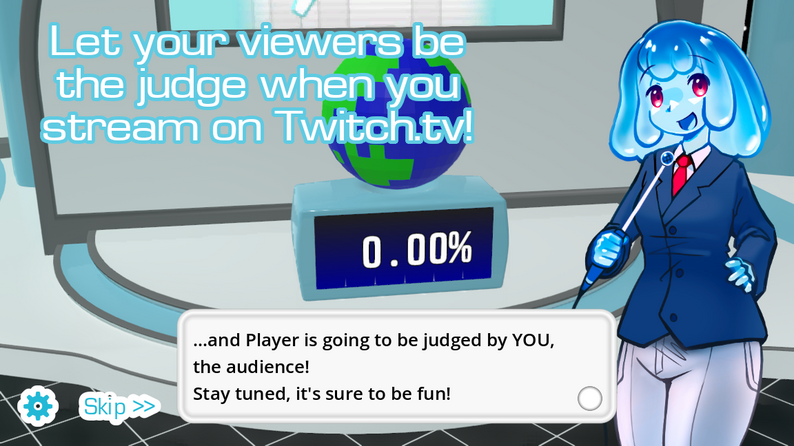
Use the browser version when you want to try the voice-impression game, test your microphone, play a quick local session, or involve Twitch Chat without downloading the desktop files.
Play the browser gameDownload the desktop edition
Use the paid itch.io version when you want an installable copy of The Choicer Voicer on your computer, local game files, and a base installation prepared for compatible custom content.
Open the itch.io pageFind community Packs
Use the Pack directory after you know which version you are installing. Search public listings, compare creators and statistics, then read the original listing before moving any files.
Browse The Choicer Voicer PacksPaid itch.io version
How to download and install The Choicer Voicer
Follow the steps in order. The most reliable setup is to make the clean game work first, then add custom files only after the base installation has launched successfully.
01
Open the paid itch.io page
Use the official itch.io listing linked above. Review the current purchase information and keep the account you use for checkout available, because the download files are tied to that purchase page.
Get the paid version02
Download the file for your computer
After checkout, use itch.io's download controls to save the current installer or archive. Store it somewhere easy to find, and avoid renaming files while you are still checking the first installation.
03
Install or extract the base game
Run the installer when the download provides one. If the download is an archive, extract the complete folder to a location you control rather than opening individual files from inside the ZIP.
04
Launch once before customizing
Open the clean game, wait for the main menu or first playable screen, and verify that the installation starts without custom files. Close the game normally before preparing a Pack.
Before adding custom content
First-launch checklist for the desktop version
A clean first launch gives you a useful baseline. If the game opens before a Pack is installed, you can compare that known-good state when a new folder, archive, or asset causes trouble.
Confirm the game opens
Reach the main menu or first playable screen without adding community files. If the game fails here, solve the desktop installation first.
Check the microphone separately
The downloadable game and the browser game may use different permissions or input devices. Select the intended microphone and make a short test before a group session.
Keep the original download
Do not delete the installer or archive immediately. Keeping the original file makes it easier to reinstall the base version if a custom-content experiment goes wrong.
Record the install location
Note where the game folder lives before you add anything. This helps you find the custom-content location and makes future backups less confusing.
Back up before changes
Copy the clean game folder or existing custom-content folder before replacing files. Use a dated backup name so you know which state worked.
Add one Pack first
Start with one compatible Pack from a source you can identify. Test it, close the game, and only then build a larger collection.
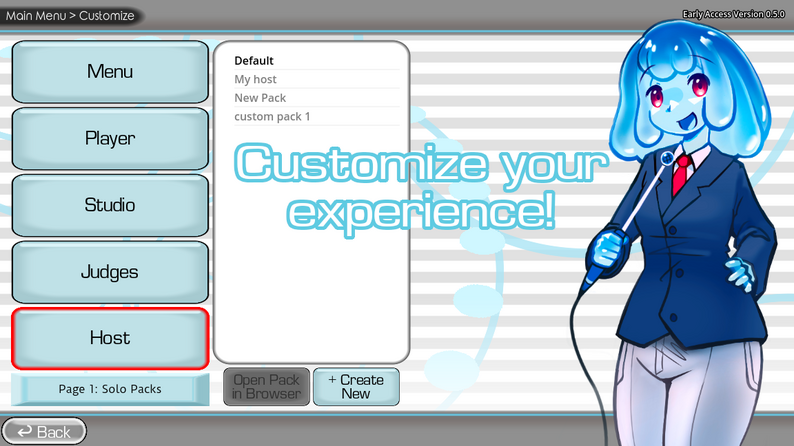
Custom content installation
How to install a compatible The Choicer Voicer Pack
The Pack directory and the download guide have different jobs. Start at The Choicer Voicer Packs when you need to compare public listings. Return to this section when you are ready to prepare and place the files in your local desktop installation.
Read the original listing before moving files
A directory card is a starting point, not a substitute for the creator’s instructions. Open the original source, check the current update notes, read any compatibility warnings, and confirm whether the Pack expects a particular game version or folder layout. Do not assume that two Packs with similar names use the same installation method.
Prepare the archive and folder
- 1. Download from the original source. Use the creator’s current file rather than a re-upload with an unclear version. Keep the source page open so you can return to its notes.
- 2. Extract the archive completely. Unpack the ZIP or other archive into a temporary location first. Do not drag only one file out of a nested archive unless the creator explicitly says to do so.
- 3. Inspect the top-level folder. Look for the folder structure, audio files, metadata, or other assets described by the source. If the archive contains an extra wrapper folder, check whether the game expects the inner folder instead.
- 4. Back up existing custom content. Copy the current custom-content folder before adding or replacing anything. A backup is especially important when a Pack changes shared menus, studio assets, or other presentation files.
- 5. Move one Pack into the expected location. Follow the creator’s folder instructions and keep the Pack separate from another creator’s files. Avoid merging folders simply because their names look related.
- 6. Restart and test a small case. Launch the desktop game again, test one relevant round or menu, and check whether the Pack behaves as described before installing another one.
Troubleshooting
Common download and Pack installation problems
The download opens but the game will not start
Return to the original itch.io download instructions, confirm that the archive was fully extracted, and make sure you are launching the expected executable or installer. Temporarily move custom content out of the way so you can test the base installation by itself.
The Pack is not listed in the game
Verify that the archive is extracted, the folder is not nested one level too deep, and the files are in the location described by the source. Restart the game after moving the folder, then test with only that Pack installed.
The game behaves differently after adding a Pack
Restore the backup or remove the newest Pack, then launch the clean version again. If the issue disappears, read the creator's compatibility notes and add Packs one at a time rather than merging several uncertain folders.
The Pack page and the downloaded file disagree
Use the original public listing as the source of truth for file versions and instructions. The directory helps you find a listing; it does not mirror or modify the creator's archive.
Download guide and Packs directory: use both pages in order
The simplest path is: play the browser version if you are only trying the game; buy and launch the desktop edition if you need local files; then use the Pack directory to find a public source and return here for installation steps. Keeping discovery separate from installation makes it easier to identify which page answers your question.